Clean The Bugs Controls
Movement, squish inputs, menus, and tool switching across devices.
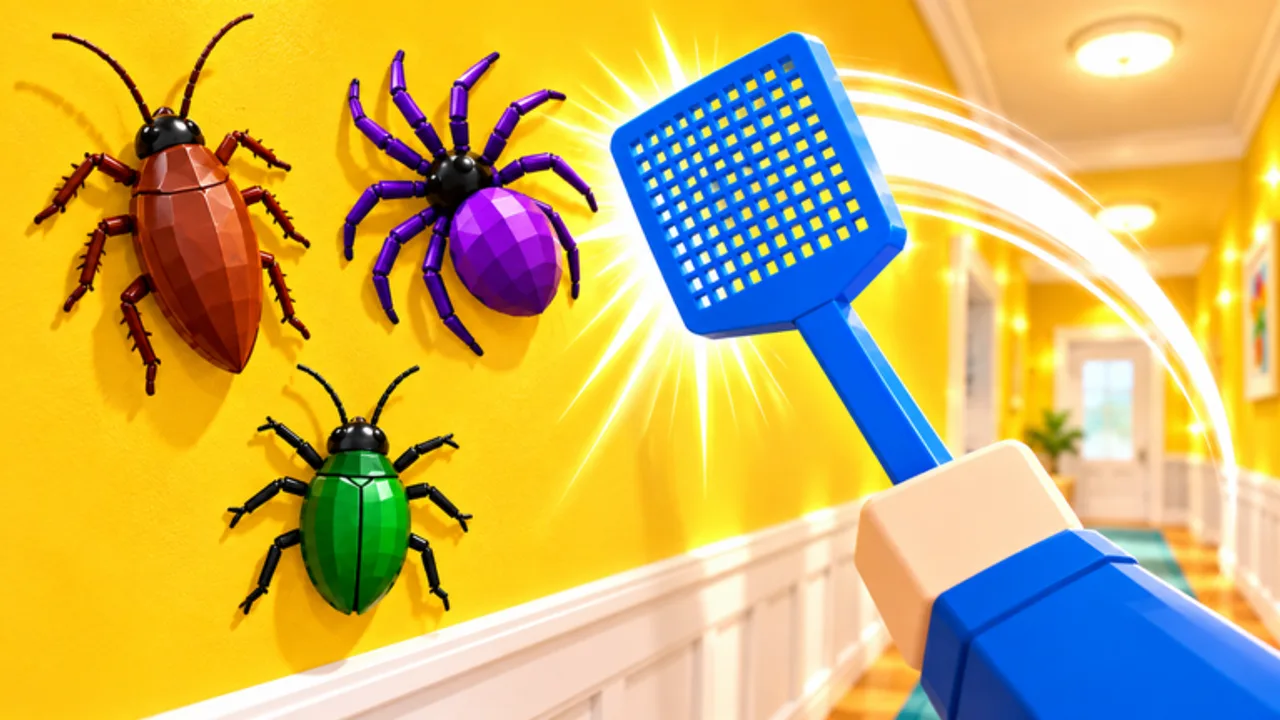
Clean The Bugs plays like other Retro Library cleanup games: standard Roblox locomotion, camera look, and a primary interact to squish or use your current tool. Exact on-screen prompts can shift after patches, so treat this page as the practical baseline — if a bind differs in your build, follow the live UI and Roblox settings first.
Pair this with Getting Started for the first session, then use Tools and upgrades once you know how to aim and dump without fumbling.
PC controls (keyboard and mouse)
| Input | Typical action |
|---|---|
| W A S D | Move |
| Mouse move | Camera / look |
| Left click | Primary squish / tool use on targeted bug |
| E or click (when prompted) | Interact with cans, dumps, shop, and UI props |
| Shift (if enabled) | Sprint when the experience allows |
| Space | Jump |
| Scroll / number keys (when shown) | Cycle tools or hotbar slots if the run UI exposes them |
| Esc / Roblox menu | Pause settings, leave, or adjust volume |
Most squishing is click-or-interact on bugs in range. Hands and Two Hands feel melee-close; Vacuum increases effective clear reach and speed once purchased. If a bug is under furniture, adjust camera angle before spam-clicking — bad camera is the number one “controls feel broken” complaint.
Right-click zoom appears in sibling Retro Library titles for inspecting labels; if Clean The Bugs exposes a zoom or inspect bind in your session, use it to spot rare shells and attic corners. When unsure, open the in-experience help or settings panel rather than guessing.
Controller
Roblox maps movement to the left stick and camera to the right stick by default.
| Input | Typical action |
|---|---|
| Left stick | Move |
| Right stick | Camera |
| RT / R2 or A / Cross (per prompt) | Primary tool / squish |
| X / Square or Y / Triangle (per prompt) | Interact / secondary |
| LB/RB or D-pad | Cycle tools or UI tabs when available |
| Menu button | Roblox or game menus |
Controller aim benefits from slower camera sensitivity in Roblox settings. Stand closer to bugs before firing the tool so stick drift does not miss. For trash cans and Jackpot dumps, walk into the interact volume, wait for the prompt, then confirm — do not mash while still turning the camera.
Mobile and touch
On phones and tablets you get virtual joysticks plus tap-to-interact.
- Left thumb: movement joystick.
- Right thumb: camera drag.
- Tap bugs or the on-screen action button to squish.
- Tap glowing interact prompts for cans, shops, and code UI.
Mobile players should lower graphics slightly if rooms get crowded with twelve players, and prefer Two Hands / Vacuum sooner so fewer precise taps are needed per nest. Landscape orientation helps attic and basement sightlines. If the jump button covers a trash prompt, remorph your thumbs or briefly stop moving before tapping interact.
Menus you will open often
Codes UI — redeem launch and assist here. Full list: Codes.
Upgrade / tool shop — buy Hands upgrades, Two Hands, Vacuum, and related run upgrades. Timing advice: Tools and upgrades.
Daily rewards / gems — claim before long jobs so currency and helpers apply to the session.
Class or loadout panels — pick a class when available; changes mid-run may be restricted depending on patch rules. Confirm in UI before assuming a swap.
Leaderboard / results — after a clear, check medals (including Gold Standard) and time for Speed Cleaner (under thirty-two minutes).
Tool switching mindset
You start on Hands, unlock Two Hands, then Vacuum. Switching is either automatic on purchase or via hotbar/scroll depending on the live build — watch the tool icon near your character or HUD. Never buy Vacuum then keep fighting as if you still had Hands range; step back, re-aim, and clear wide arcs.
Bare Hands Pro challenges require finishing without relying on upgraded tools — practice Hands-only control on Easy first so click timing is muscle memory. See Pro notes in Chapter 1 and Chapter 2.
Camera and targeting tips
- Keep the camera slightly elevated in kitchens and basements so floor bugs stay visible.
- Strafe while clicking clusters instead of standing still in a nest.
- After dumping trash, turn fully before sprinting so you do not miss the next doorway.
- In attics (Next Door), pitch the camera down to catch rare bugs along beams — Rare bugs.
- If co-op teammates block a can, wait one second rather than spinning the camera into a wall.
Accessibility and Roblox settings
Lower camera sensitivity if you overshoot bugs. Enable shift-lock only if you prefer twin-stick-like facing; many cleanup players leave it off for freer strafing. Volume duck music slightly so interact prompts and teammate callouts remain clear. On console Roblox, verify that the experience has focus before calibrating sticks.
Practice drill (five minutes)
Start an Easy Chapter 1 job alone. Clear one room using only movement and primary squish. Dump once at a trash can. Open the shop UI and back out without buying. Redeem codes if not claimed. Then clear a second room while consciously adjusting camera height. That drill trains the inputs without medal pressure.
When controls feel solid, move to room strategy on Chapter 1: The House and map two on Chapter 2: Next Door. For meta rankings of tools after you can aim cleanly, open the Tier List hub. Badge tracking lives under Players; patch notes under Updates.
Troubleshooting “I cannot squish”
- Out of range — walk closer; Hands need proximity.
- Wrong tool selected — check HUD icon.
- UI modal open — close codes/shop overlays.
- Lag in full lobby — wait for replication or reduce graphics.
- Bug already claimed by teammate VFX — move to the next cluster.
If interactables fail entirely, rejoin the server. Controls issues after a big patch are often documented on Updates or community channels tied to Retro Library / StarMarine.
Master movement and primary use first. Fancy routes and Pro badges only stick when every click lands.
Frequently Asked Questions
Quick answers for Clean The Bugs players.
What is the main PC input for squishing bugs?
Use left click or the on-screen interact prompt (often E-style) on bugs in range. Follow live HUD prompts if a patch remaps the bind.
Does Clean The Bugs support controller and mobile?
Yes. Controllers use sticks plus trigger/face-button prompts; mobile uses virtual joysticks and tap-to-squish. Adjust sensitivity in Roblox settings.
How do I open the codes menu?
Use the in-game codes UI from the experience menus, then redeem codes such as launch and assist. Steps and active lists are on the Codes hub.
How do I switch from Hands to Vacuum?
Buy the upgrade in the run shop. Switching appears on the tool HUD or hotbar depending on the current build — watch the equipped icon after purchase.
Why do my clicks miss in crowded rooms?
Raise the camera, get closer with Hands-tier tools, and avoid spinning while a shop or codes modal is open. Vacuum helps once unlocked.